.png?fit=max&auto=format&n=rExdh2xAS2_ywWU5&q=85&s=2336659947d2543be68f95bf2d539b85)

Workspaces
A workspace is a team’s space. It contains projects, and it has its own members and roles.Create a workspace
An org owner or admin creates a workspace from Organization, Workspaces or from the workspace switcher. Choose New workspace, type a name, and choose Create. The new workspace is empty and the creator is its Admin. Org admins can open it straight away.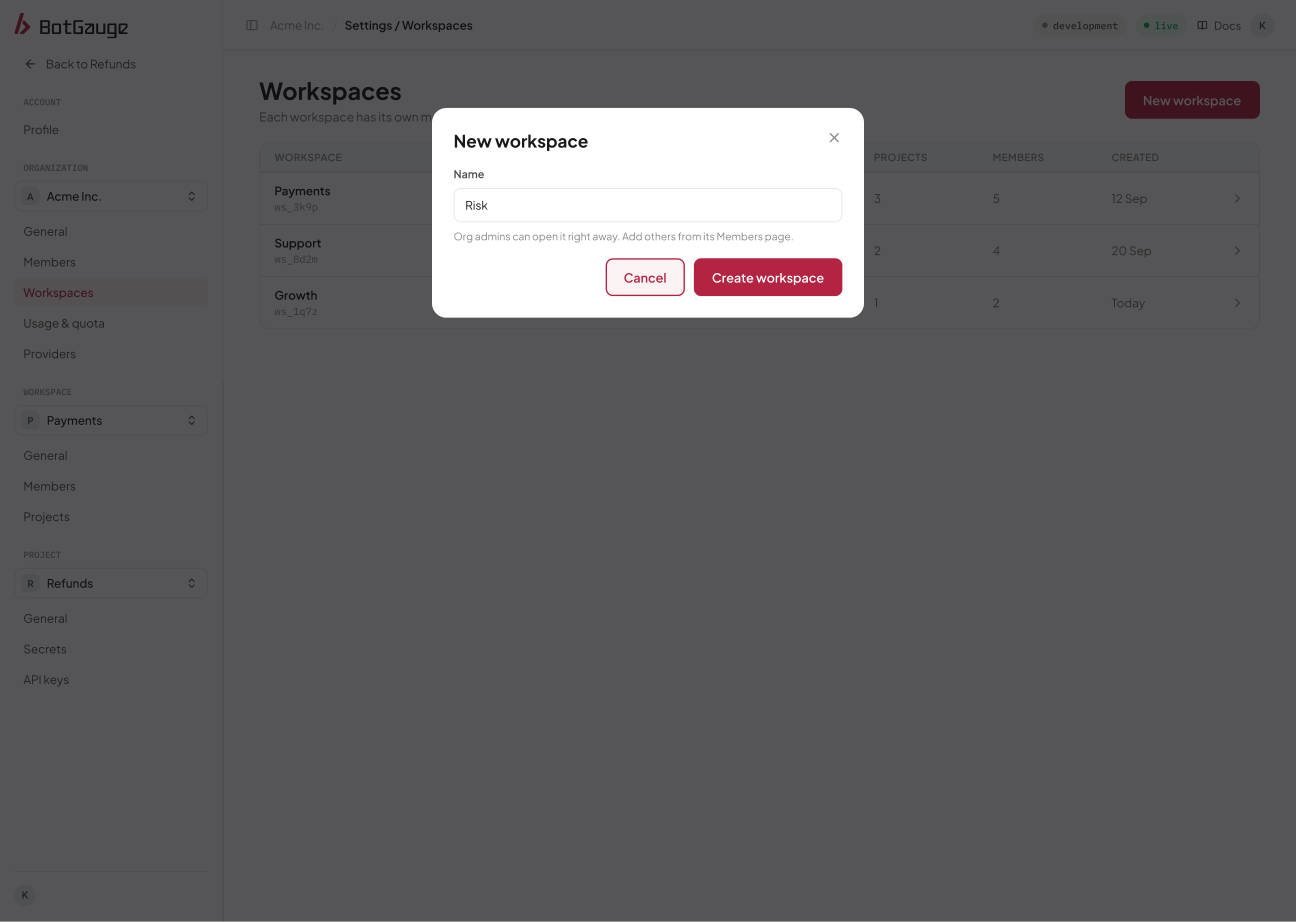
Create a workspace.
Rename a workspace
A workspace admin (or an org admin) edits the name under Workspace, General and saves. The new name appears for everyone in the workspace.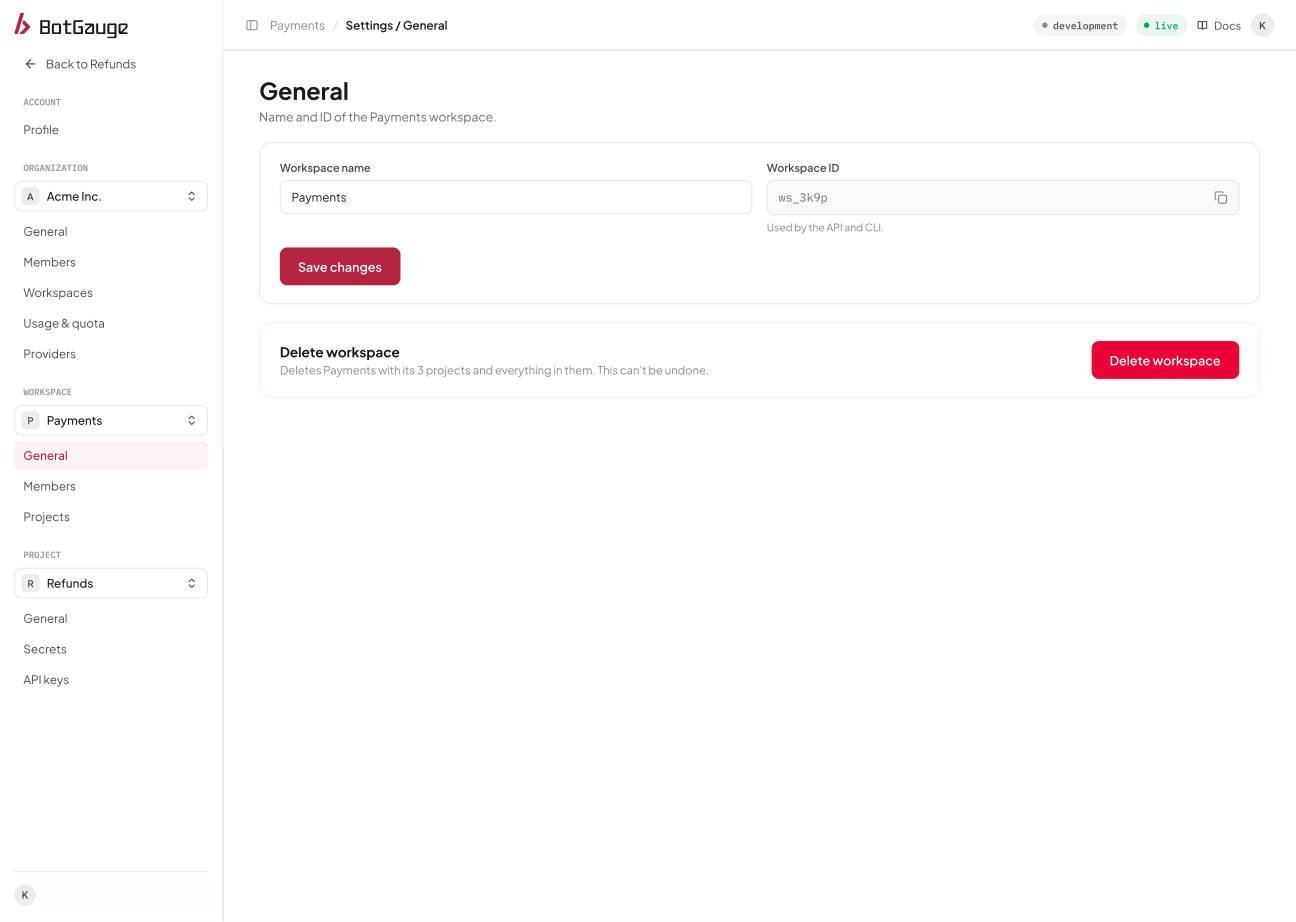
Workspace, General.
Delete a workspace
Deleting a workspace deletes all of its projects, agents, reports, and API keys, and its members lose access. The console shows how many projects are affected and warns that this can’t be undone. An organization must keep at least one workspace, so the last workspace can’t be deleted.Plan limits
The Free plan includes one workspace, and it also limits organization members. Alimit of null in the plan limits response means unlimited. If a Free organization needs more workspaces, an org owner or admin can choose Request more workspaces. The request is recorded and BotGauge staff are emailed. When staff raise the plan, the limit goes away. Asking again while a request is open returns the same request instead of creating a second one.
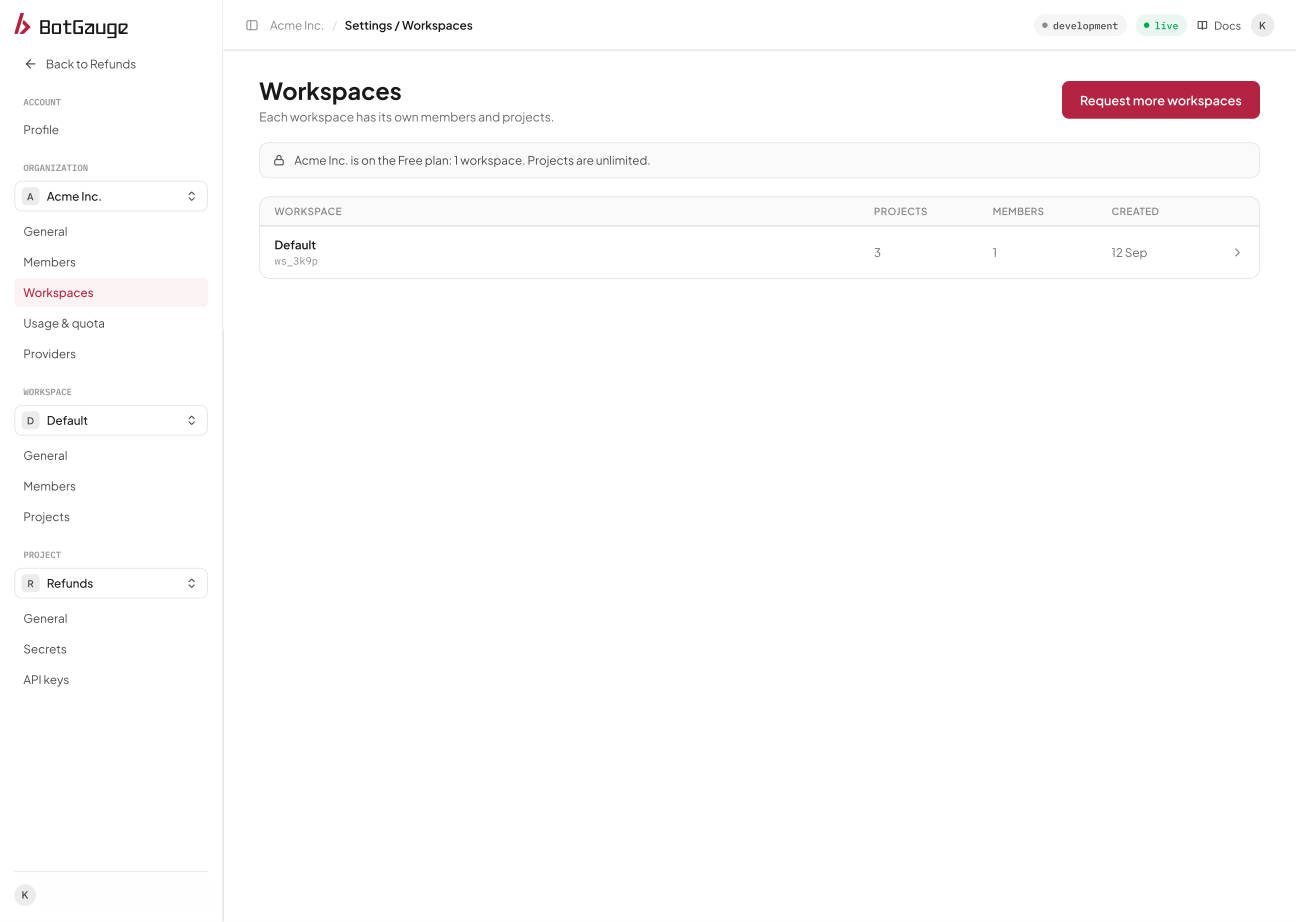
On the Free plan, the Workspaces page shows the limit.
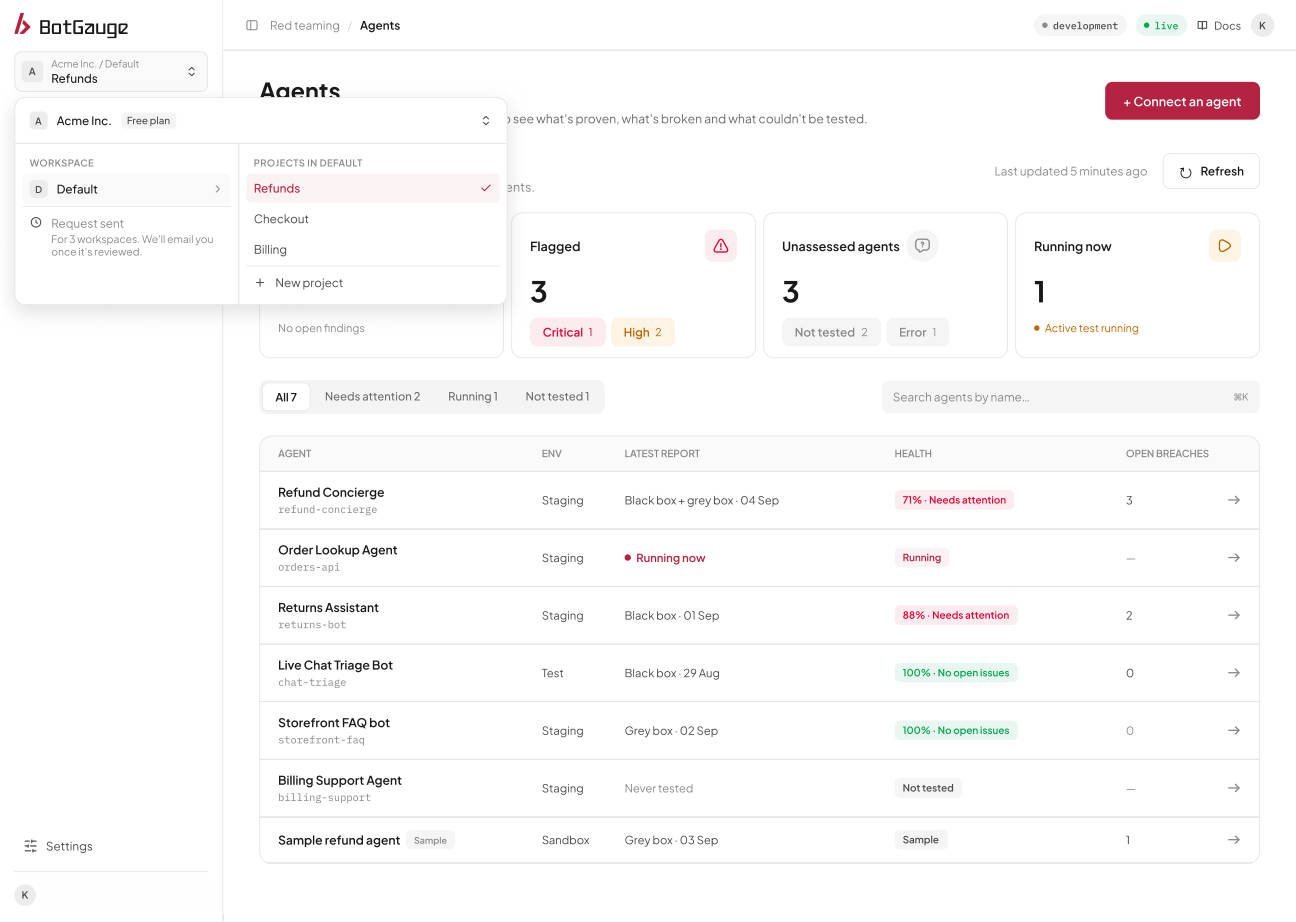
After you request more workspaces, the console shows that the request was sent.
Projects
A project holds agents and logs, and it has its own secrets and API keys. Everyone in the workspace opens every project in it, with their workspace role.Create a project
A workspace Member or Admin creates a project from Workspace, Projects or from the switcher. Choose New project, type a name, and choose Create project. Projects are unlimited on every plan.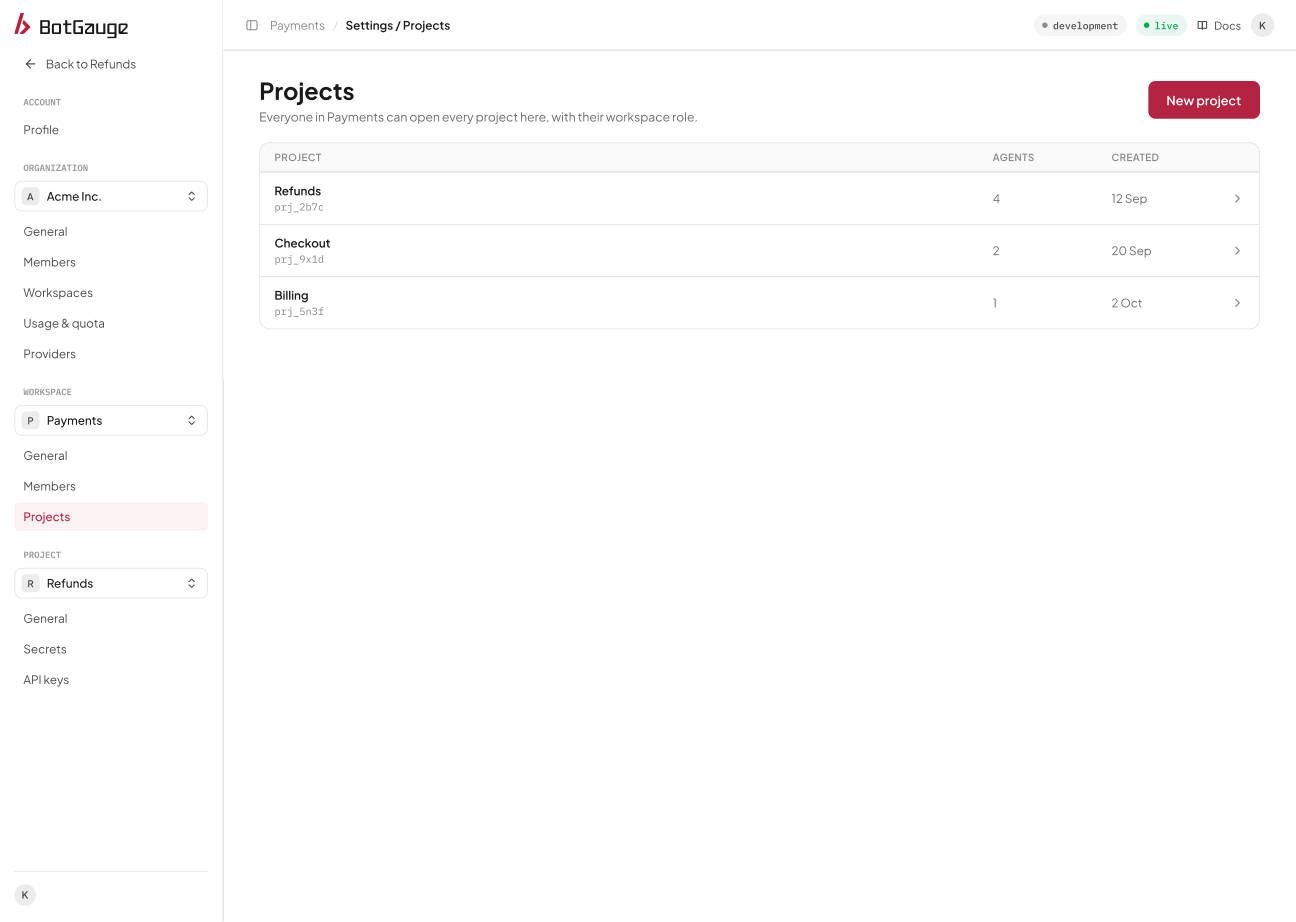
Workspace, Projects.
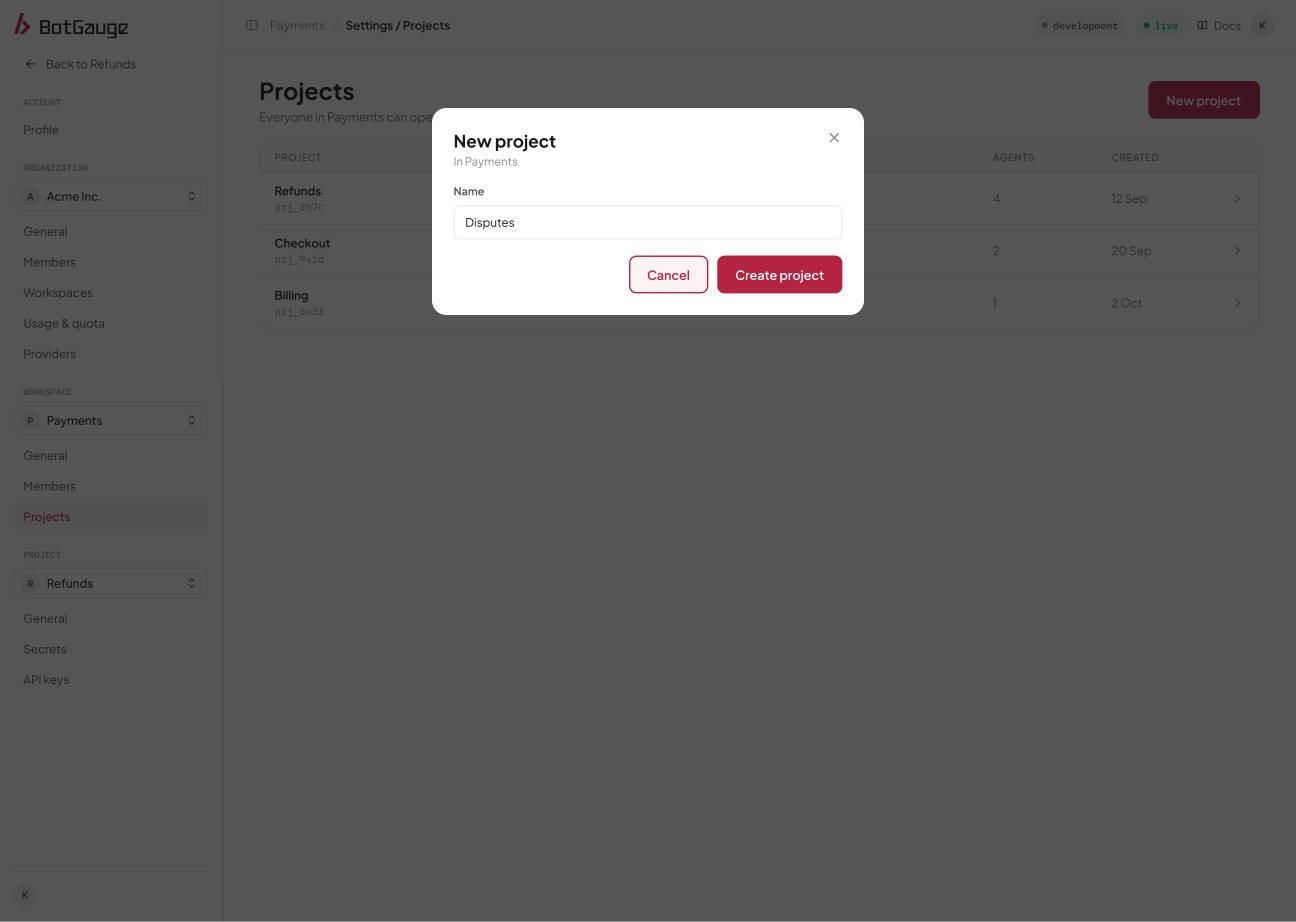
Create a project.
Rename a project
A workspace Member or Admin edits the name under Project, General and saves.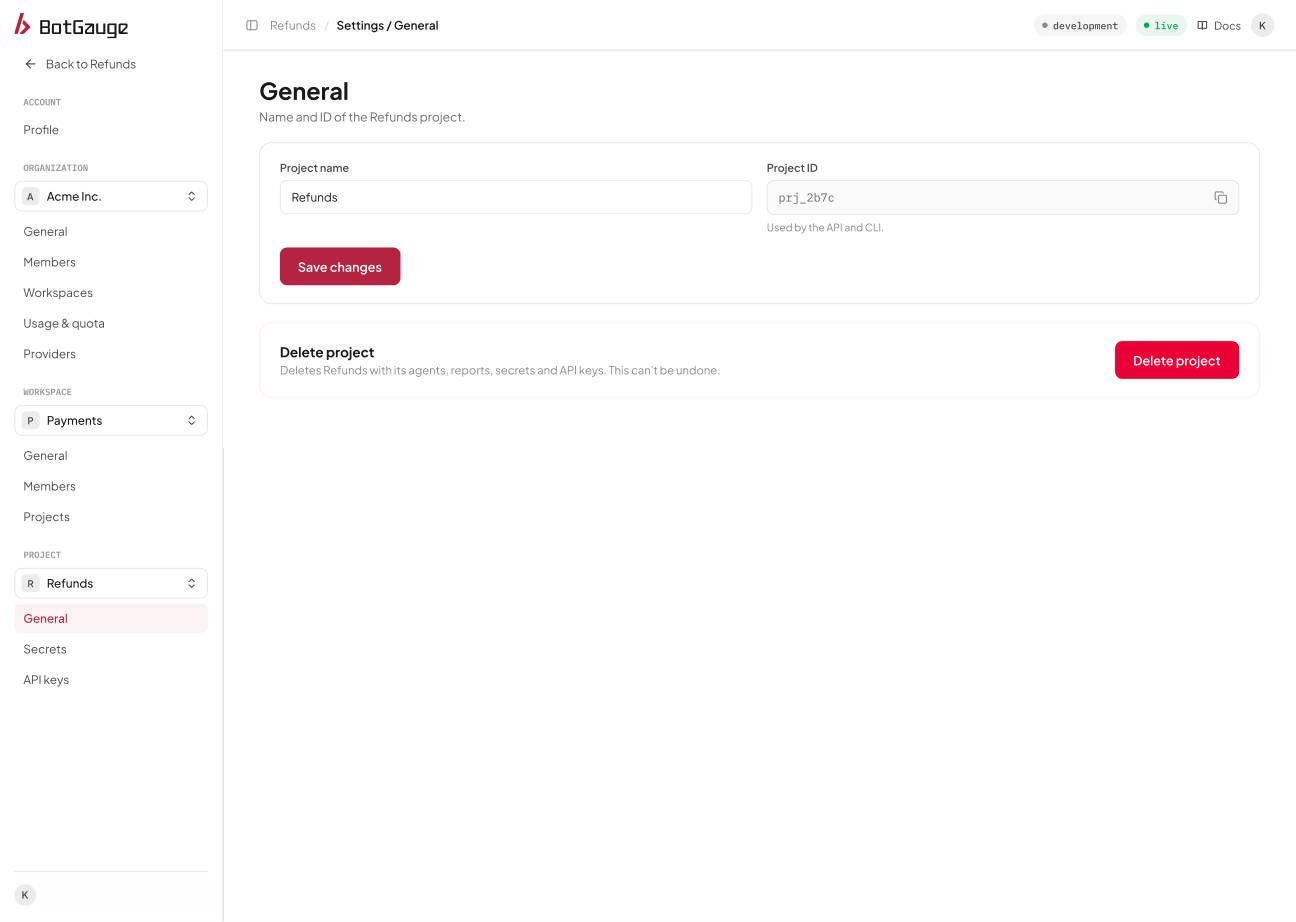
Project, General.
Delete a project
Only a workspace Admin can delete a project. The project and its agents, reports, secrets, and API keys are deleted. The console warns that this can’t be undone.Workspace and project IDs
The General page of a workspace or project shows its ID, with a copy button. The console notes that the ID is used by the API and the CLI.Set up workspaces and projects
Open BotGauge to create a workspace and add your first project.