.png?fit=max&auto=format&n=rExdh2xAS2_ywWU5&q=85&s=2336659947d2543be68f95bf2d539b85)

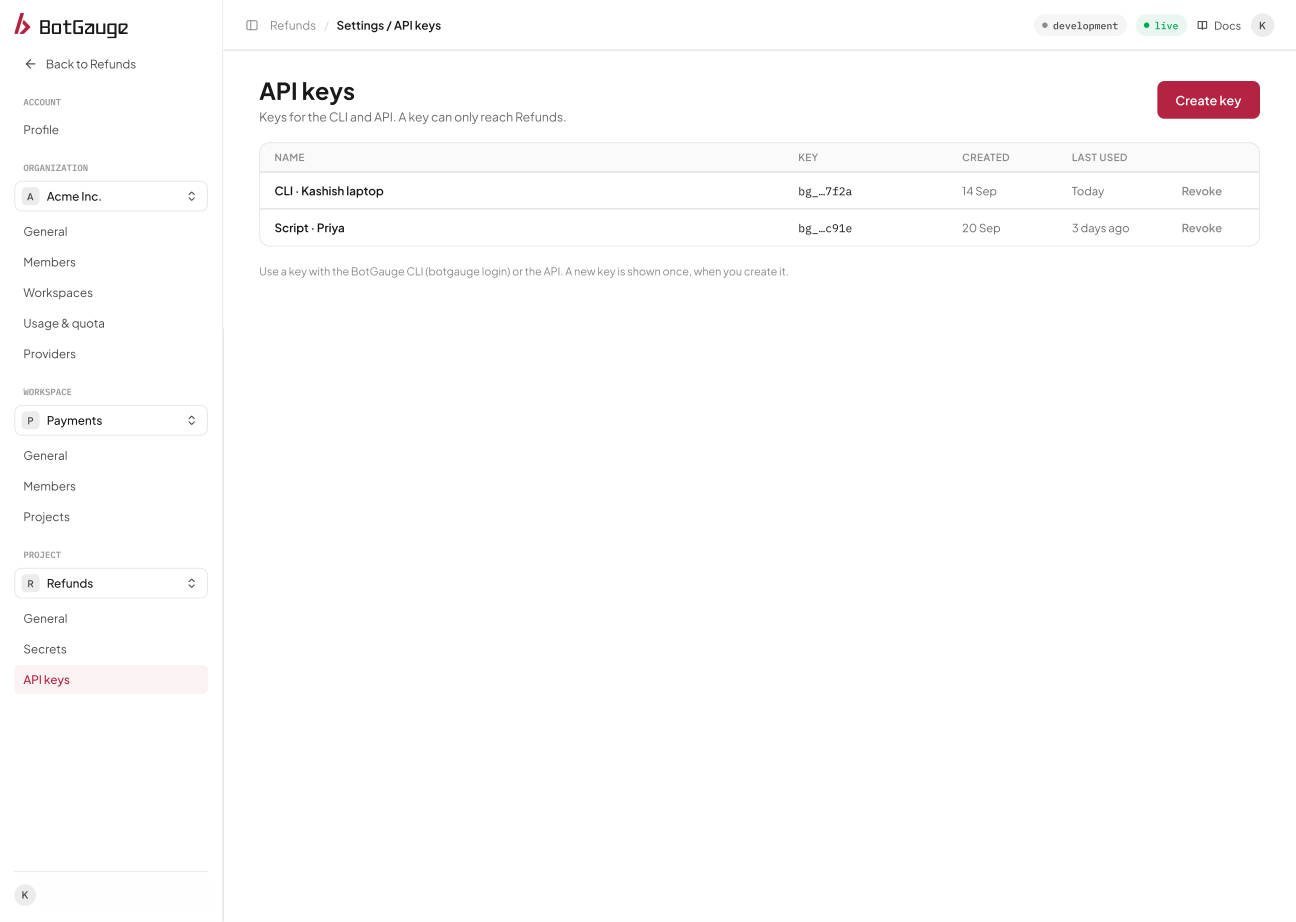
Project, API keys.
Create a key
1
Open the project
Switch to the project that should receive the traces.
2
Go to API keys
Open Settings, Project, API keys and choose Create key.
3
Name the key
Use a name that says what the key is for, such as
CI - GitHub Actions or Script - Priya. A good name makes it easier to know what breaks if you revoke it.4
Copy the key
The dialog shows the full key once, with a Copy button. It starts with
bg_. You can’t view it again.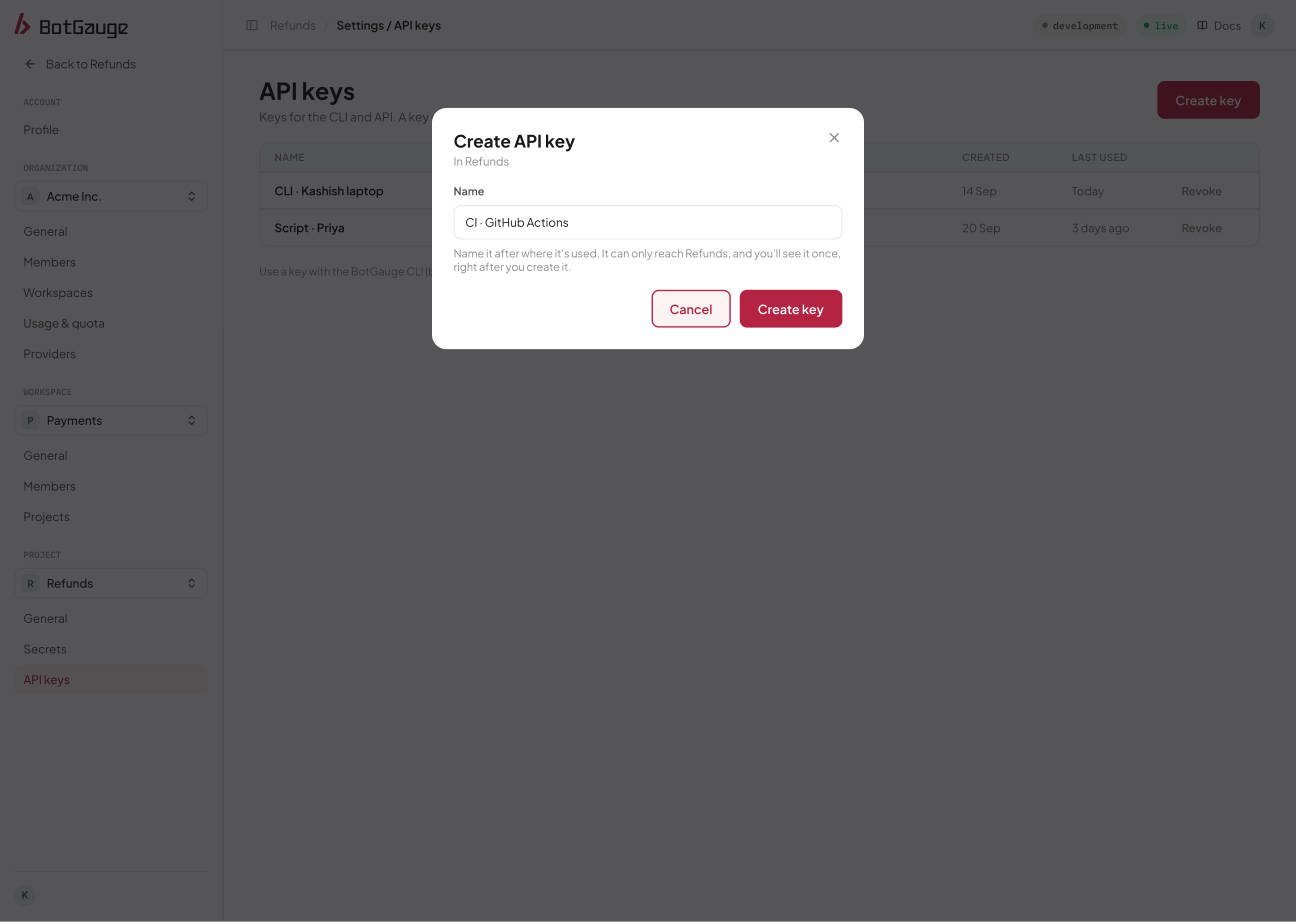
Name the key after what will use it.
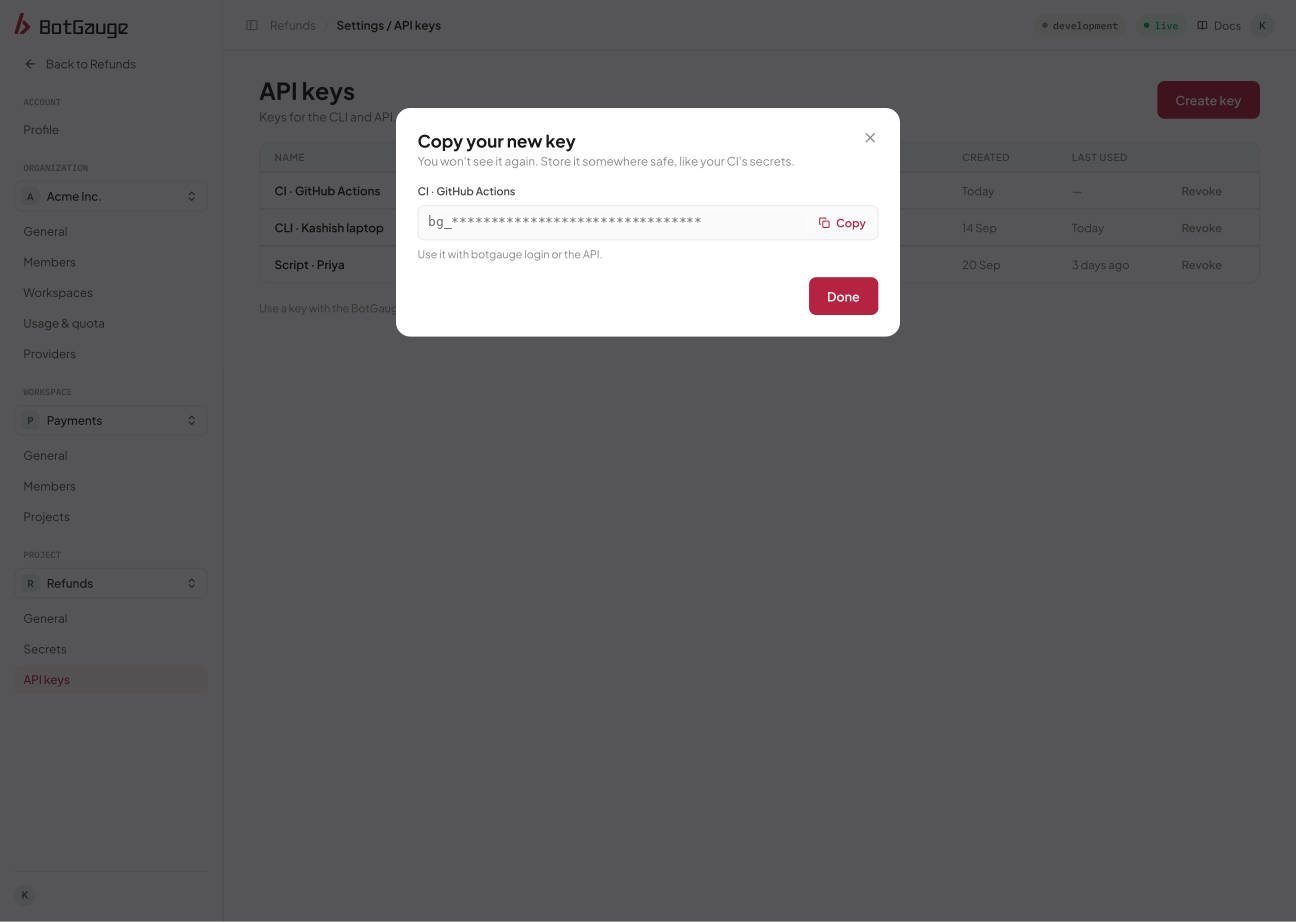
The full key is shown once. The value in this image is masked.
botgauge login) or the API, and that a new key is shown once, when you create it.
What the table shows
The API keys table lists each key’s name, a masked key showing its prefix and last four characters (for examplebg_...W35g), when it was created, and when it was last used. A key that has never been used shows no last-used time.
Revoke a key
Choose Revoke on a key and confirm. The key stops working immediately and can’t be turned back on. To replace a key, create a new one first, update your deployments, confirm traces still arrive, and then revoke the old key.One key per consumer
Create a separate key for each pipeline, service, or person. When a key leaks or someone leaves, you can revoke exactly one key without touching the rest, and the last-used time tells you which keys are still active.Generate a project API key
Go to BotGauge to create a key and start sending traces.